
[HUDX-227] Annual Performance Report
Report Purpose and Summary
This report will give you total counts and demographics of those served during the reporting period selected. It also looks at average time in the program and increases in income from start to exit.
CoC APR uploads are required at regular intervals set by the Department of Housing and Urban Development. This guide will show you the steps to follow in HMIS to retrieve the file to upload to your SAGE.
Note: If you are running this report to find the number of persons served on one night by household you would run the report for one date. The report start and end date would be the same date.
Instructions
Make sure you are operating in Clarity under the agency you are running the report for. You can check and change this under your name in the upper right corner.

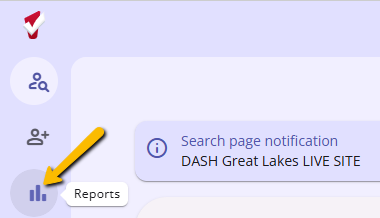
Step 1: On the left side of the screen, click on the Reports icon.
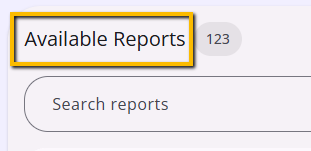
Step 2: In the Report Library, scroll down to Available Reports.
Step 3: In the search bar, type in HUDX-227 and the report will appear below.

Step 4: On the right side of the screen, click on the Run button.

Reporting Parameters
The following parameters apply to both RHY and SSVF requests.
| Switch Access Agency(ies) | Choose your agency |
| CoC Filter Category | Choose 'Agency CoC' |
| CoC(s) | Choose CoC(s) the program is in |
| Project Type(s) | Choose Program Type(s) you want to include in the report (click the plus icon to select multiple project types) |
| Program Status | Choose 'Active Programs' for current programs |
| Program(s) | Choose the Program(s) you wish to include in the report (click the plus icon to select multiple programs) |
| Apply Client Location Filter | Choose 'No' |
| Federal Funding Source Criteria | For ESG Programs: Choose 'Only Primary Fundings' / Active Fundings / HUD: ESG [funding type] or
For Non-ESG Programs: Choose 'Not Based on Federal Fund Source' for any project |
| Client ID Selection | Choose 'Clarity Unique Identifier' |
| Report Date Range | Choose Start Date and End Date of reporting period |
| Report Output Format | Your choice*, Choose CSV-Upload for upload to SAGE |
| Drilldown Output Format | Your choice* |
*Drilldown Functionality is available when run in Web Page Format.
Step 5: Click Submit.

The file will be sent to the Report Queue. Once the report has processed, you will see the number one appear in the Report Queue in the upper right corner of the screen.

To open the report, click the Report Queue icon and then click Open.

Step 6: Save the .csv file on your computer and upload the file to the appropriate repository.
Important Note: Do not open or alter any of the information in the .csv file
Submitting the Report to SAGE
Once the report has been cleared of all errors that can be cleared, you are ready to submit the report in SAGE.
To submit the report to SAGE:
1. Click download and save report to a folder you will be able to retrieve it from.
2. The report downloads to a CSV file that is required for upload to SAGE.
If you'd like to save the report as you see on the screen for other purposes, right click and click print. You will be able to change the printer option to "Save As PDF."
Related Trainings
Click the image to start.

To receive credit for viewing the training video you must submit the Training Completion Form at the end of the video. Attendance verification code is provided at the end of the training.
Missed the link to complete the form: click here to enter it
Original training date: 02.03.2023
Length: self-directed, approx. 90 minutes
Copyright © Institute for Community Alliances, 2026. All Rights Reserved.