
[GNRL-220] Program Details Report
Report Purpose and Summary
This report is based on project enrollments and provides information about clients enrolled in the program(s) you run the report for. Clients without an enrollment will not be included in the Program Details Report. The user can select to pull data from any or all of the following “screen types” within the program enrollment:
- Entry Data
- Status Assessment Data
- Annual Assessment Data
- Current Living Situation
- Exit Data
- Follow-up Assessment Data
Additionally, the report provides some profile and Housing Service information, depending on the screen selected.
Instructions
Make sure you are operating in Clarity under the agency you are running the report for. You can check and change this under your name in the upper right corner.

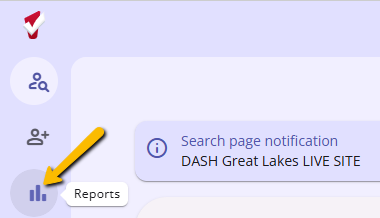
Step 1: On the left side of the screen, click on the Reports icon.
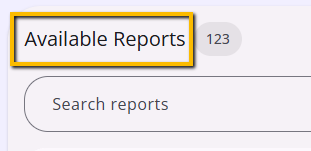
Step 2: In the Report Library, scroll down to Available Reports.
Step 3: In the search bar, type in GNRL-220 and the report will appear below.
Step 4: On the right side of the screen, click on the Run button.

Reporting Parameters
| Project Type(s) | Select the project type(s) to include (click the plus icon to select multiple) |
| Program Status | Select Active, Inactive, or All programs |
| Program(s) | Select which of your agency’s program(s) to include (hold either control/command/shift button to select multiple) |
| Screen Type(s) | Select from the following (click the checkboxes to select multiple)
|
| Enrollments | Select either Active Enrollments or New Enrollments (New enrollments pull all enrollments that have a start date within the reporting period) |
| Report Date Range | Specify the report start and end date |
| Report Output Format | This report is only available in Zip with xlsx files format. There will be a separate workbook for each program and screen type selected. |
Step 5: Click Submit.
The file will be sent to the Report Queue. Once the report has processed, you will see the number one appear in the Report Queue in the upper right corner of the screen.

To open the report, click the Report Queue icon and then click Open.

Reporting Details
The report produces the following fields for each of the “screen type” options:
- Unique ID
- First Name
- Last Name
- Agency
- Assigned Staff
- Staff Created
- Enrollment Start Date
- Enrollment Exit Date
- Chronic Homeless
- Bed Night Service
- Bed Night First Date
- Bed Night Last Date
- Date of Birth
- Social Security Number
- Personal ID
- Household ID
- Gender
- Race and Ethnicity
- Veteran Status


Copyright © Institute for Community Alliances, 2026. All Rights Reserved.