
[STFF-101] Staff Activity Report
Report Purpose and Summary
This report generates data reflecting the system activity of certain staff members. It provides information regarding login dates, times, and durations.
Instructions
Make sure you are operating in Clarity under the agency you are running the report for. You can check and change this under your name in the upper right corner.

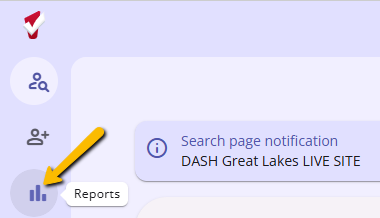
Step 1: On the left side of the screen, click on the Reports icon.
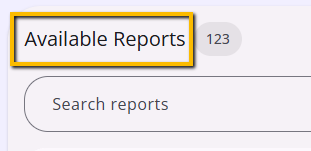
Step 2: In the Report Library, scroll down to Available Reports.
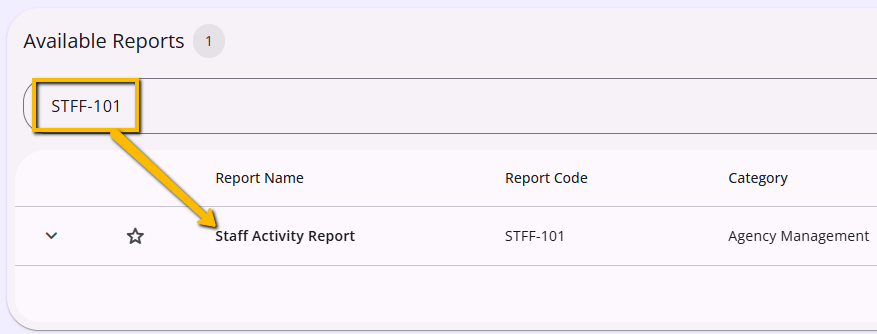
Step 3: In the search bar, type in STFF-101 and the report will appear below.
Step 4: On the right side of the screen, click on the Run button.

Reporting Parameters
| Staff Status(es) | Select which staff status(es) to include |
| Include Bitfocus Staff | Select 'No' |
|
Staff |
Select the staff member(s) to include |
|
Report Date Range |
Choose the date range of activities to include in the report |
|
Report Output Format |
Select Web Page, PDF or Excel |
Step 5: Click Submit.
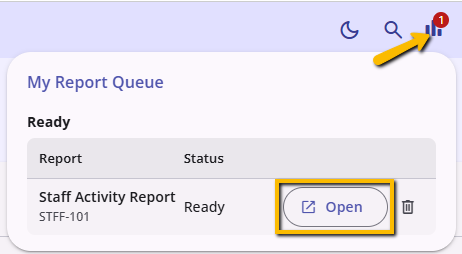
The file will be sent to the Report Queue. Once the report has processed, you will see the number one appear in the Report Queue in the upper right corner of the screen.

To open the report, click the Report Queue icon and then click Open.
Reporting Details
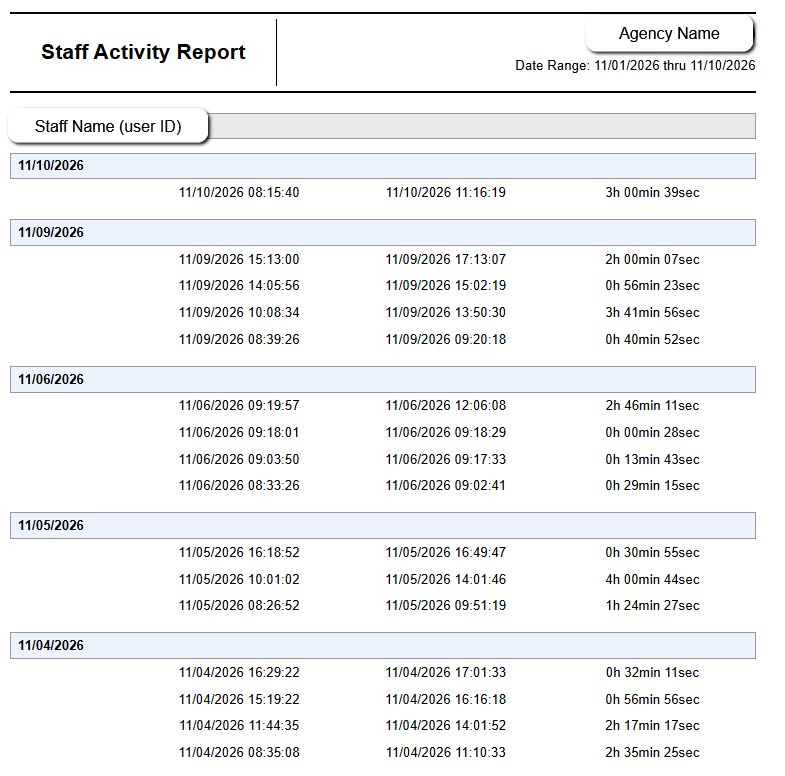
The first column lists the dates the staff member logged into the Clarity system. The second and third column list the specific dates and times the staff member was active in the Clarity system on that particular day. The fourth column conveniently provides duration in terms of hours, minutes, and seconds for each activity session.
Copyright © Institute for Community Alliances, 2026. All Rights Reserved.